Puran
TIL Photos Reading Weekly Current Shelf Search Stats
  • 🌍 #ArcGISEarth230Tips | Tip 38: Create & Share Interactive Tours on Mobile! 🎥📲

    Did you know?

    ArcGIS Earth Mobile lets you build engaging, interactive tours using geotagged photos and placemarks? Document your travels, showcase locations, or guide viewers through spatial data – and even record your tour as a shareable video!

    🛠️ How to Create a Tour in ArcGIS Earth Mobile:

    1️⃣ Add Tour Stops:

    • Open the Toolbox 🧰, select “Tour,” and add Tour stops.
    • Choose from existing placemarks or search for locations.
    • Use geotagged photos from your album or capture new ones (location data required).

    2️⃣ Customize & Preview:

    • Rename your tour and add a detailed description.
    • Use “Overview” to see all stops on a 3D map, or “Play” ▶️ to preview and adjust viewpoints and playback duration.
    • Edit stops: reorder, add text, and customize path colors.

    3️⃣ Save & Share Your Tour:

    • Export as KMZ for sharing or upload to ArcGIS Enterprise.
    • Tap “Share” to record your tour as a video and save it to your album. (Note: Globe interaction is disabled during recording).

    🚀 Pro Tips:

    1️⃣ Utilize tours for guided fieldwork, immersive virtual storytelling, or detailed trip documentation. 2️⃣ Combine stunning 3D views with photos and text for a truly engaging experience.
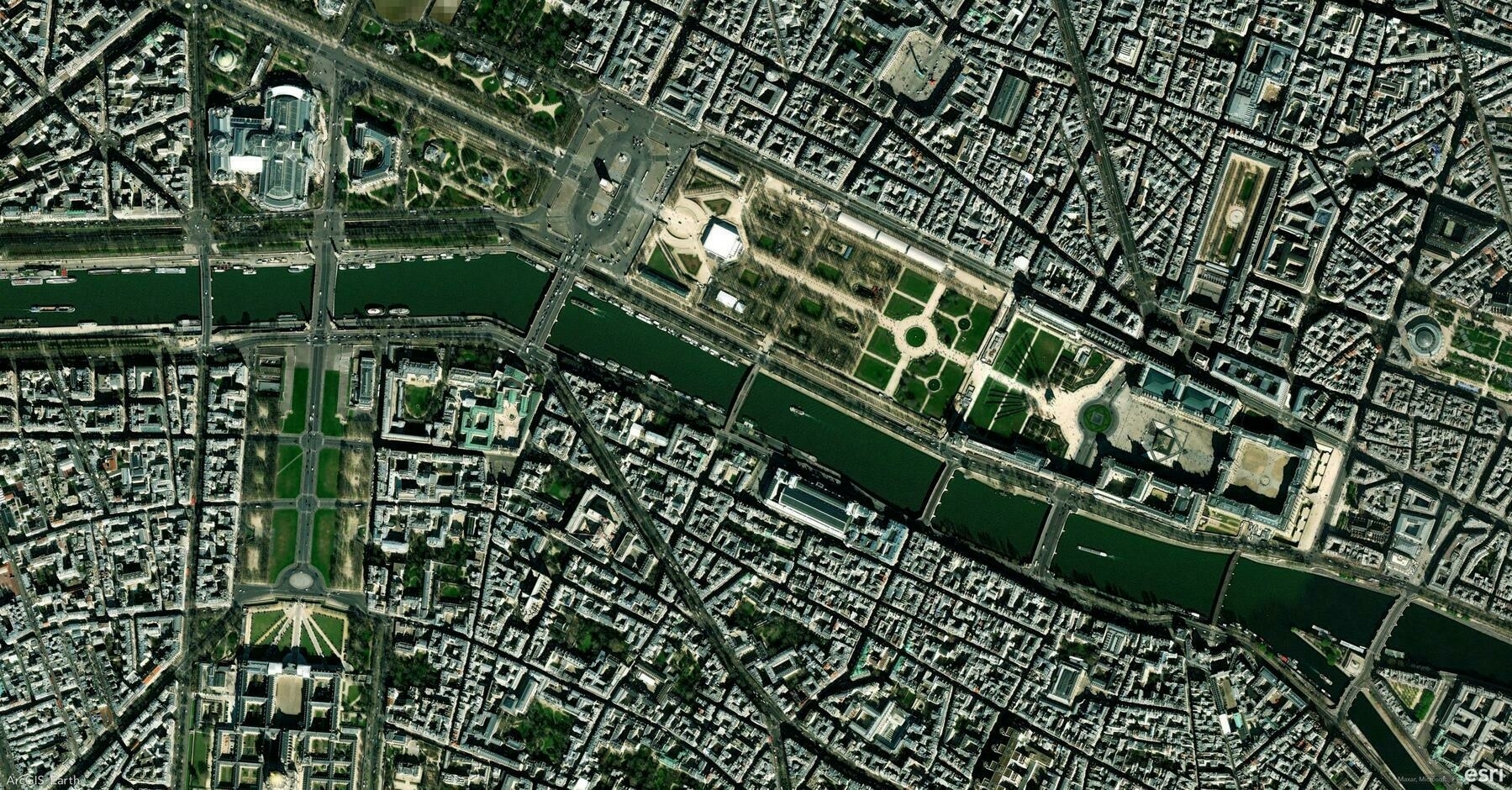
    Screenshot of Paris, France, from ArcGIS Earth
    → 9:06 PM, Mar 14
    Also on Bluesky
  • 2025-03-13

    Today’s work focused on resolving code freeze issues and minor fixes, particularly in Survey123 and the attribute table.

    Hamer woke up before her alarm, eagerly getting out of bed once it rang. We shopped online for a jump rope in the morning, and when it arrived in the evening, she was thrilled. After school, she played with her classmate, had dinner with them, and stayed at her home late doing homework, only coming home around 9 PM.

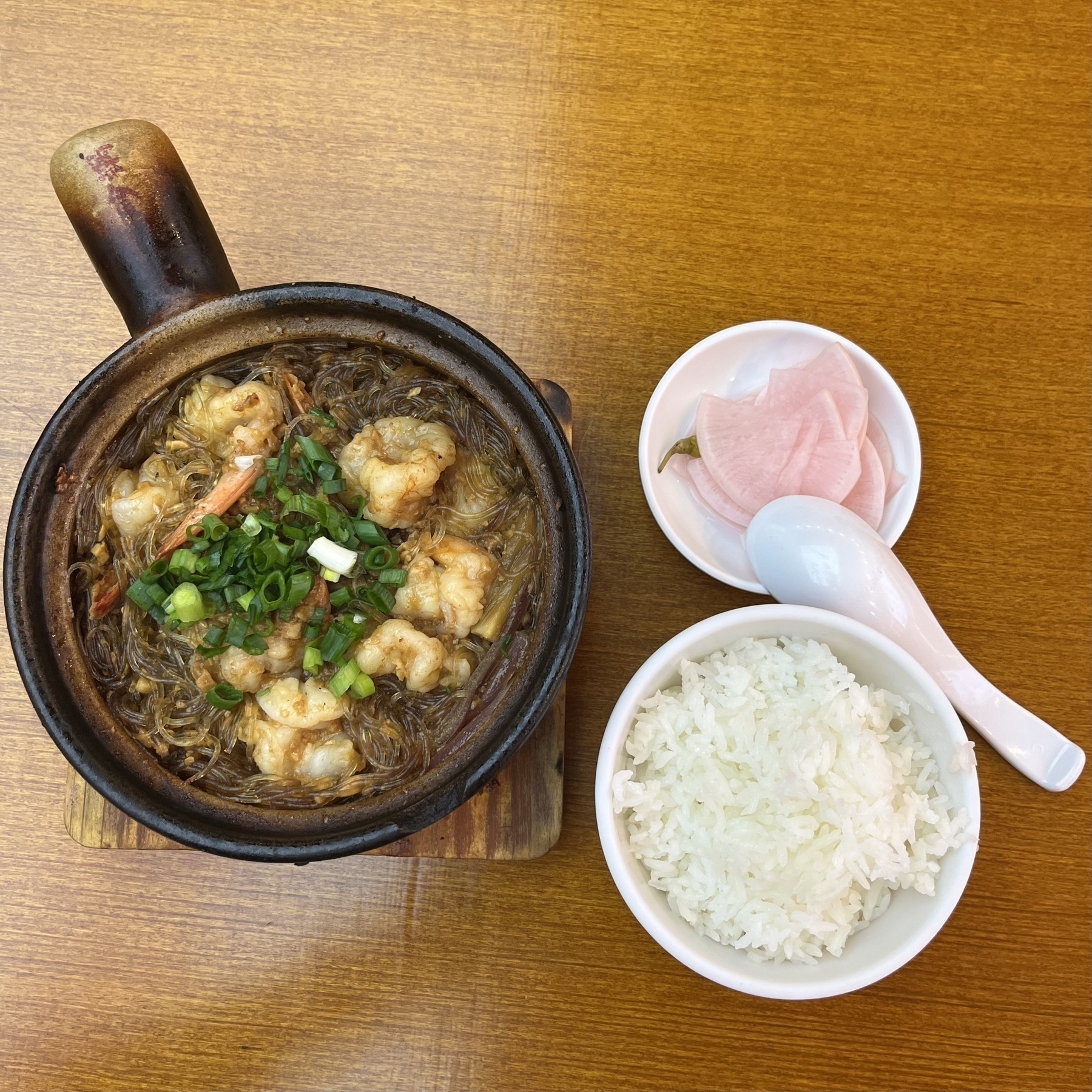
    After work, I tried a Chengdu-style clay pot restaurant and was impressed. While checking Xiaoyan’s location in Thailand, I came across the Garuda, the national emblem, and also discovered the Highway Gothic, a typeface designed for federal highways.

    Chengdu-style clay pot as my dinner
    → 10:30 PM, Mar 13
    Also on Bluesky
  • 🌍 #ArcGISEarth230Tips | Tip 37: Perform Line of Sight & Viewshed Analysis on Mobile! 👀📲

    Did you know?

    With ArcGIS Earth Mobile, you can analyze visibility and obstructions in real time using Line of Sight and Viewshed Analysis—essential for urban planning, security assessments, and terrain evaluation!

    🛠️ How to Use Line of Sight & Viewshed Analysis

    1️⃣ Open the Analysis Tools Tap the Toolbox 🧰 → Select Line of Sight 👁️ or Viewshed 🌎.

    2️⃣ Perform a Visibility Analysis

    • 📍 Line of Sight – Set an observer point, then add one or more target points to check visibility.
    • 🌍 Viewshed – Place an observer location to visualize areas that are visible or obstructed based on elevation and terrain.

    3️⃣ Adjust Parameters for Accuracy

    • ✅ Green = Visible areas | ❌ Red = Obstructed areas
    • Modify observer height, visibility distance, field of view, direction, and tilt for precise analysis.

    🚀 Pro Tips

    1️⃣ Use Line of Sight to determine if a landmark, building, or terrain feature is visible from a specific location. 2️⃣ Apply Viewshed Analysis to evaluate coverage areas for security, urban planning, or telecommunications networks.

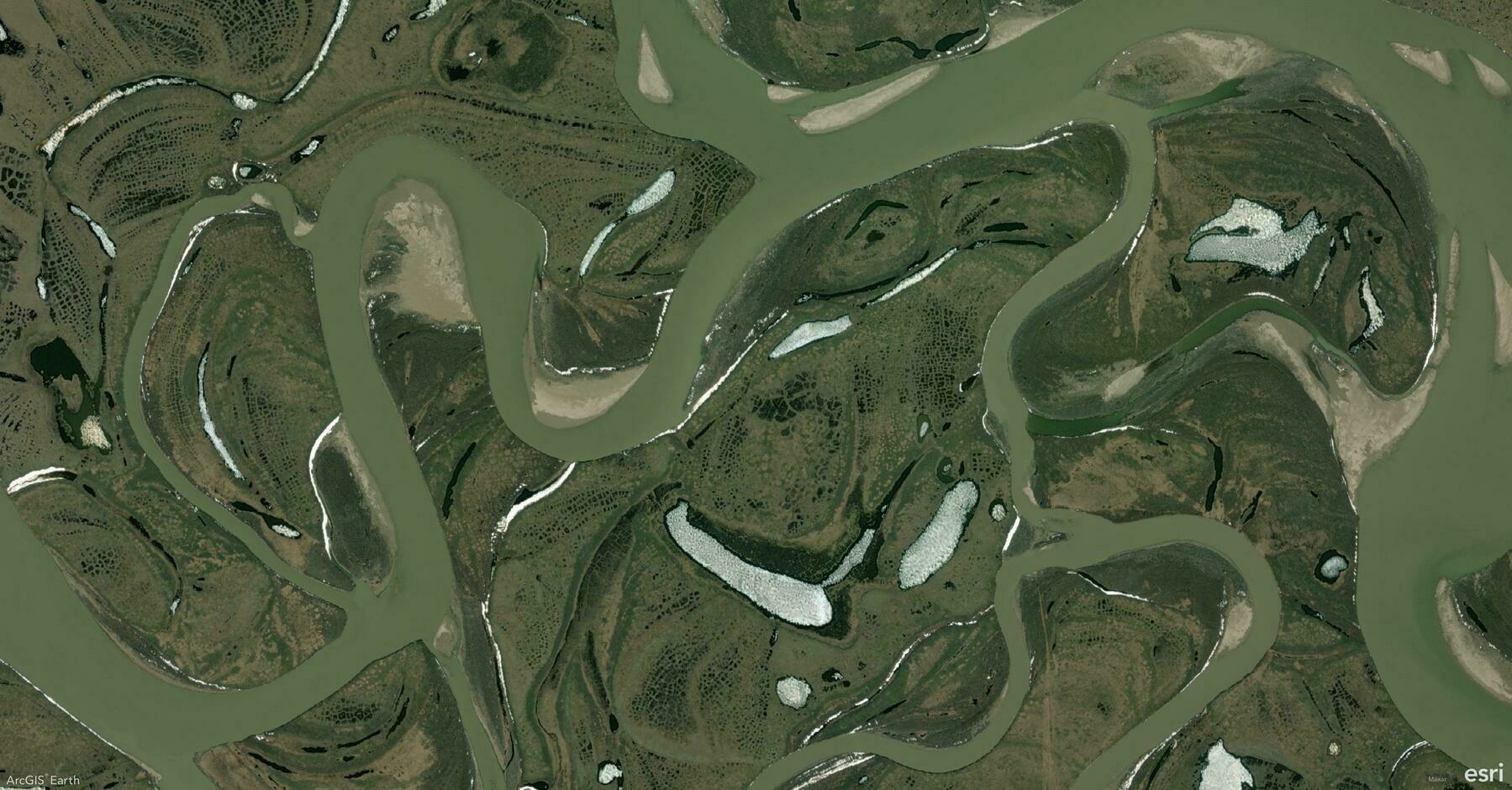
    Screenshot of Chaunsky District, Russia, from ArcGIS Earth
    → 9:40 PM, Mar 13
    Also on Bluesky
  • 2025-03-12 TIL: Model Context Protocol (MCP) and OpenAI new tools for building Agent

    2025-03-12 TIL: Model Context Protocol (MCP) and OpenAI new tools for building Agent

    💻

    Model Context Protocol (MCP)

    MCP is an open protocol that standardizes how applications provide context to LLMs. Think of MCP as a USB-C port for AI applications—just as USB-C offers a standardized way to connect devices to various peripherals, MCP provides a universal way to link AI models with different data sources and tools.

    MCP helps you build agents and complex workflows on top of LLMs, ensuring seamless integration with data and tools. It provides:

    • A growing list of pre-built integrations that LLMs can directly plug into.
    • Flexibility to switch between LLM providers and vendors.
    • Best practices for securing data within your infrastructure.

    🔗 Resources:

    • A collection of MCP servers
    • Find Awesome MCP Servers and Clients

    OpenAI New Tools for Building Agents

    A new set of APIs and tools specifically designed to simplify the development of agentic applications:

    • Responses API – Combines the simplicity of the Chat Completions API with the tool-use capabilities of the Assistants API.
    • Built-in tools – Includes web search, file search, and computer use.
    • Agents SDK – Orchestrates both single-agent and multi-agent workflows.
    • Integrated observability tools – Enables tracing and inspection of agent workflow execution.

    MCP vs. OpenAI’s Tools

    Similarities:


    • ✔️ AI Integration – Simplifies external data & tool connections.

    • ✔️ Modular Design – Expandable & adaptable.

    Differences:

    • MCP is a protocol, OpenAI’s are proprietary tools.
    • MCP is open-source for cross-platform use; OpenAI’s tools optimize for its ecosystem.
    • MCP requires a custom server, while OpenAI’s tools offer easier direct integration.
    → 9:51 PM, Mar 12
    Also on Bluesky
  • 2025-03-12

    This morning, while making a mango breakfast, Hamer accidentally cut her finger, but she handled the bleeding surprisingly calmly.

    Xiaoyan left for Thailand today—her second trip there. She had really wanted me to join her, but I hesitated and ultimately declined, which left her a bit frustrated.

    I spent most of the morning restructuring the KMZ saving function and wrapped it up in the afternoon before adjusting the UI.

    I also explored MCP technology, realizing I had overlooked its potential, and briefly checked out OpenAI’s new Agent tool.

    Hamer is practicing Ballet
    → 9:26 PM, Mar 12
    Also on Bluesky
  • 🌍 #ArcGISEarth230Tips | Tip 36: Measure Distances & Areas in 3D on Mobile! 📏📲

    Did you know?

    With ArcGIS Earth Mobile, you can measure locations, distances, areas, and 3D distances in real time—perfect for quick field analysis!

    🛠️ How to Measure in ArcGIS Earth Mobile

    1️⃣ Open the Measure Tool & Select a Measurement Type

    • 📍 Measure Location – Get longitude, latitude, and elevation at a point.
    • 📏 Measure Distance – Measure the length of a path by adding points.
    • 📐 Measure Area – Calculate the surface area of a polygon.
    • 📊 Measure 3D Distance – Find the direct, vertical, and horizontal distances between two points.

    2️⃣ Perform a Measurement Move the crosshairs to a location and tap Add ➕ to place points. You can also Undo to remove the last point or Complete to finish.

    3️⃣ Save & Copy Results Tap Copy 📋 to store the result for future use.

    🚀 Pro Tips

    🏗️ Use 3D Distance to analyze height differences between terrain, buildings, or infrastructure.

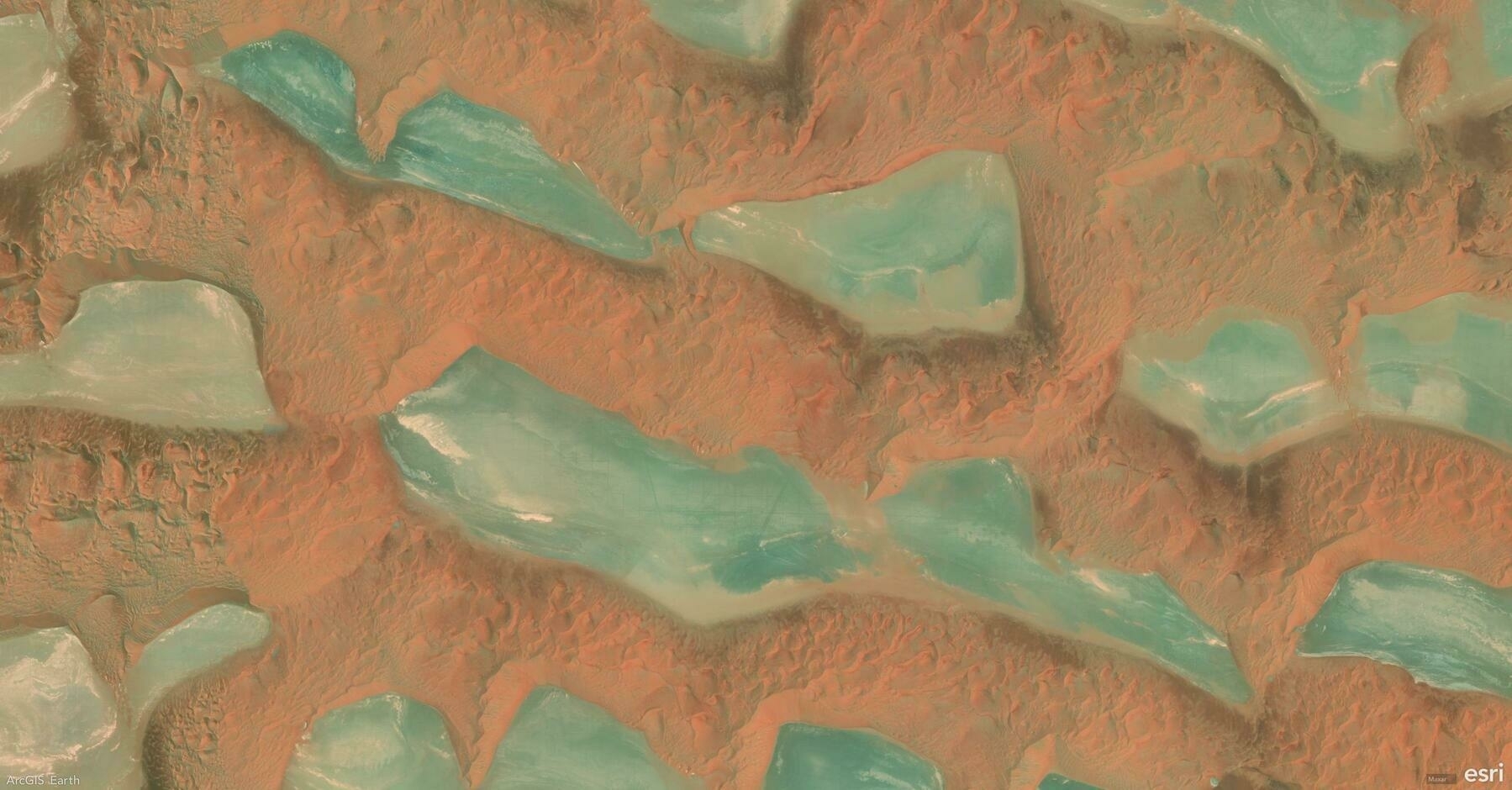
    Screenshot of Al Ahsa, Saudi Arabia, from ArcGIS Earth
    → 8:58 PM, Mar 12
    Also on Bluesky
  • 2025-03-11 TIL: GitHub Copilot in Visual Studio 2022 and new Chat in Cursor

    2025-03-11 TIL: GitHub Copilot in Visual Studio 2022

    💻

    Code with GitHub Copilot in Visual Studio 2022

    • Commit & PR Message Generation & Customization
    • Using Extensions to generate Mermaid Charts
    • Analyzing and improving code while debugging
    • Analyzing Exceptions with GitHub Copilot

    Cursor Chat

    A unified AI interface that combines Ask, Edit, and Agent modes to help you write, edit, and understand code directly in your editor. The interface offers three modes, selectable from the mode picker:

    • Agent: AI assistant that uses tools and reasoning to perform coding tasks with minimal supervision. (Agent can make up to 25 tool calls before stopping.)
    • Edit: Make single-turn edits to your code with precision and clarity.
    • Ask: Ask questions about your code, get explanations, and explore your codebase.
    → 9:59 PM, Mar 11
    Also on Bluesky
  • 2025-03-11

    Lately, my dreams have been unusually vivid. Last night, I dreamed of Xiaoyan searching for her classmates before a movie, only for everyone to regroup in front of a barbershop.

    The morning was packed with meetings, and I even forgot one due to being so focused on planning. I felt a bit down afterward, but a round of table tennis and casual chats with colleagues lifted my mood.

    In the afternoon, I tackled data storage issues, upgraded Visual Studio, and fine-tuned GitHub Copilot. Using Cursor and Claude 3.7 Sonnet, I implemented a UI design from a mockup with great results.

    In the evening, Hamer and her classmate played at home until 8:30 PM, reluctant to say goodbye.

    A young girl wearing a yellow cap and a colorful jacket stands near a pedestrian crossing, looking up with a smile.
    → 9:47 PM, Mar 11
    Also on Bluesky
  • 🌍 #ArcGISEarth230Tips | Tip 35: Create & Share Drawings on Mobile! ✏️📲

    Did you know?

    With ArcGIS Earth Mobile, you can draw, edit, and share geospatial features—including points, lines, and polygons—to enhance your spatial data collection and visualization. Whether marking key locations, sketching routes, or defining areas of interest, the drawing tools provide a simple yet powerful way to capture geospatial insights on the go!

    🛠️ How to Create & Edit Drawings in ArcGIS Earth Mobile

    1️⃣ Open Drawing Tools & Choose a Drawing Type

    • Tap the Toolbox 🧰 on the home screen, then select the Draw ✏️ tool (default: Point).
    • Choose from the following:
      • 📍 Point – Mark a specific location.
      • 📏 Line – Draw paths, routes, or boundaries.
      • 📐 Polygon – Define areas with multiple vertices.

    2️⃣ Enhanced Editing & Interaction

    • Tap a drawing to open a pop-up menu for editing attributes, adjusting styles, or deleting features.
    • Modify Shapes – Drag to adjust the position or reshape a feature.
    • Navigation Integration – Tap Navigate to open a third-party navigation app (e.g., ArcGIS Navigator, Google Maps, Apple Maps) for directions to your drawing.

    3️⃣ Sharing & Exporting Drawings

    • Manage Drawings – View all drawings in the Drawings tab in the Table of Contents.
    • Control Visibility – Show/hide individual drawings for a clutter-free map.
    • Save & Share as KMZ
      • 📂 Save as a Local KMZ File – Export selected drawings into a .kmz file.
      • ☁️ Share Across Devices – Upload to ArcGIS Online or ArcGIS Enterprise for continued editing on desktop.

    🚀 Pro Tips

    1️⃣ Use GPS 📍 to place points precisely at your current location. 2️⃣ Long-press a drawing for quick options like edit, delete, or share. ✨

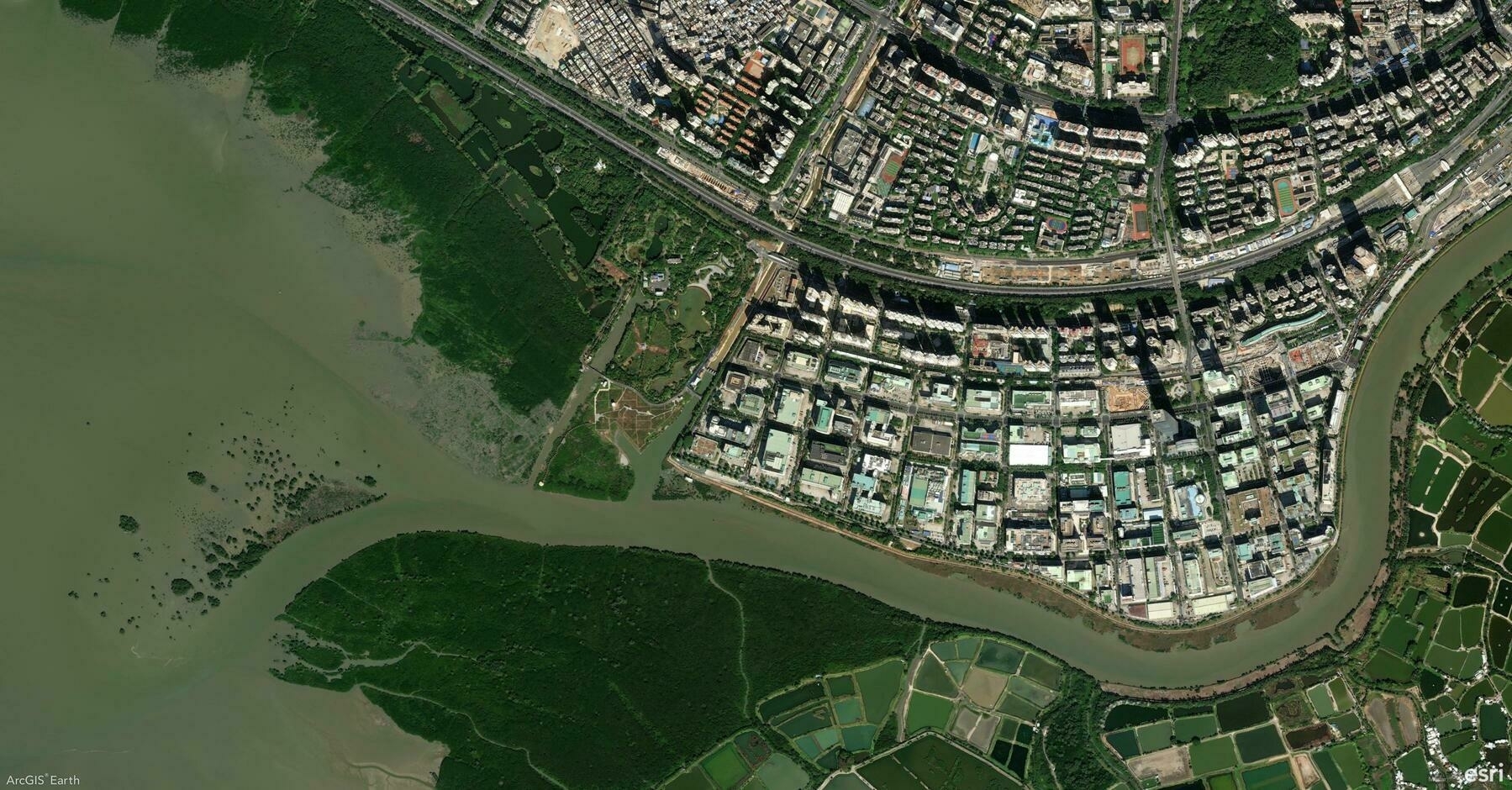
    Screenshot of Shenzhen Shi, China, from ArcGIS Earth
    → 9:30 PM, Mar 11
    Also on Bluesky
  • 2025-03-10 TIL: Arcade Expression

    2025-03-10 TIL: Arcade Expression

    💻

    ArcGIS Arcade

    ArcGIS Arcade, a basic scripting language from Esri, helps you map the values you need or create completely new data values in minutes.

    • Arcade is a portable, lightweight, and secure expression language used to create custom content in ArcGIS applications. Like other expression languages, it can perform mathematical calculations, format text, and evaluate logical statements. It also supports multi-statement expressions, variables, and flow control statements.
    • Arcade’s power lies in its portability across different ArcGIS applications. It provides a consistent syntax that can run on desktop, web, and mobile devices.

    Example: Constructing an ArcGIS Earth App Link from a Feature Popup:

    var geom = Geometry($feature);
    var x = geom.x;
    var y = geom.y;
    
    // Handle the Z-coordinate, defaulting to 500 if null or empty
    var z = DefaultValue(geom.z, 500);
    
    // Function to convert Web Mercator to WGS84
    function WebMercatorToWGS84(pt) {
        var x = pt.x / 20037508.34 * 180;
        var y = pt.y / 20037508.34 * 180;
        y = 180 / PI * (2 * Atan(Exp(y*PI / 180)) - PI / 2);
        return { 'x': x, 'y': y };
    }
    
    if (geom.spatialReference.wkid == 102100) {
        var coords = WebMercatorToWGS84(geom);
        x = coords.x;
        y = coords.y;
    }
    
    url = "[www.arcgis.com/home/item...](https://www.arcgis.com/home/item.html?id=7de2582460bb47e284b2adc5e6a6753b)";
    
    url = UrlEncode(url)
    
    var earthLink = "[earth.arcgis.app](https://earth.arcgis.app/?viewpoint=cam:)" + x + "," + y + "," + z + ";" + "" + "," + "" + ";&url=" + url;
    
    return earthLink;
    
    → 10:33 PM, Mar 10
    Also on Bluesky
← Newer Posts Page 32 of 112 Older Posts →
  • RSS
  • JSON Feed
  • Lucky
  • Archive
  • About